
The Advanced Winds & Temps page allows you to attach weather briefings to your flight plan, and, more specifically, provides a way to select the type and source of weather data that will be applied in the flight plan calculation.

Enroute Weather and Winds Aloft briefings provide textual information at the end of your flight plan. To attach an Enroute Weather briefing to your flight plan output, check the Attach Enroute Weather button. To attach a Winds Aloft briefing to your flight plan output, check the Include Winds Aloft button.

NOTE: The Winds Aloft attachment feature is format specific; it only displays in formats designed to accept this request.

Weather Database refers to the source of information used in the flight plan calculation; the winds and temperatures aloft that influence the route and profile of the flight. JetPlan provides choices over the types and sources of weather data you may use for flight planning. Types of weather data include:

Live Winds refers to the most recent wind and temperature forecast data available for flight plan calculations on JetPlan. This data is typically collected and compiled within the past 24 hours and generally provides a window of valid coverage that extends at least 30 hours into the future. This choice is the default selection.
You have four sources of Live Winds from which to choose:
ADF is the default selection. To use one of the other three databases, select the National Weather Service, U.K. Meteorological Office, or NWS RUC button.
When your flight plan is computed using any of the Live Wind choices, the output will indicate the weather database applied to the computation. Check the top of the flight plan next to the term PROGS (usually found on the second line). There you will find the date and time of the forecast, and the acronym for the database used.

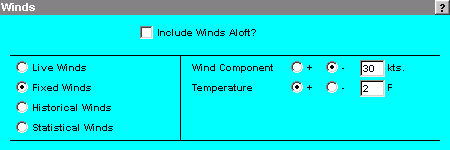
Fixed Winds refers to a steady wind and temperature component for the entire flight. This option is a planning tool, allowing you to view fuel computations based on various fixed weather scenarios. You enter your own wind component and ISA deviation value into the flight plan request. For example, assume you have a flight across the Atlantic next month. Using published information, you enter the average tailwind and temp deviation for the next month and JetPlan will use these values to calculate the flight plan results.
To apply the Fixed Winds feature, select the Fixed Winds button. To the right, select plus (+) or minus (-) for the Wind Component (a plus implies a tailwind, a minus implies a headwind) and then enter the wind speed in the next dialog box. Then in the next dialog box, select plus or minus for the Temperature deviation component, and enter the temperature deviation value, in degrees Farenheit.
Example:

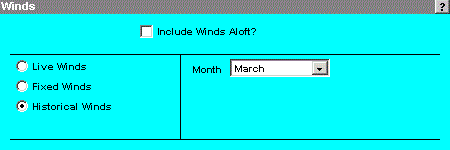
The Historical Winds database is a compilation of weather data gathered from years of information, and averaged to provide historically likely wind and temperature figures for any given month. Like the Fixed Winds option, this feature allows you to plan a flight for any time of the year.
To apply the Historical Winds feature, select the Historical Winds button. To the right, select a time of year from the Month menu.
Example:

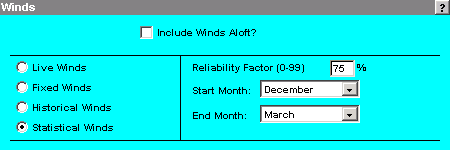
Statistical Winds is another analysis tool. It refers to a JetPlan method whereby you specify a confidence level in the weather data provided from a historical database which has been gathered over 40 years and averaged for specific time periods. The confidence level you enter is a percent value that represents the likelihood of occurrence for wind speeds less than those found in the historical data. For example, using a specific month like November, there are 40 monthly samples of data available. If you enter an 80% reliability factor, you suggest that the wind speed value should not exceed those found in the database for 32 out of 40 (80%) Novembers.
To apply the Statistical Winds feature, select the Statistical Winds button. To the right, select the Reliability Factor box and enter a percent value (from zero to 85%). Next, select a month from the Start Month list and the End Month list. To look at a single month time frame, select the same month in both lists.
Example:
For more information on this and other JetPlan features, go to the available online (PDF) documentation by clicking the following link: JetPlan Manual?